What is LLMS.txt?
An llms.txt file is a plain-text summary of your store, written for AI assistants. Since May 2026, Shopify serves three of these files on every store automatically: /agents.md, /llms.txt and /llms-full.txt. AI agents read /agents.md.
Some AI assistants use llms.txt and others largely don't, so treat it as a helpful signal, not a ranking guarantee. Letting AI crawlers into your store (check this in Audit) and adding structured data usually count for more.
Seokai helps in three ways: it checks what your storefront serves today, generates a richer file from your catalog, and gives you a theme template to serve your own version. Generating a file does not put it on your storefront by itself. Only the theme template changes what your store serves.
How to Generate
Step 1: Open AI tools
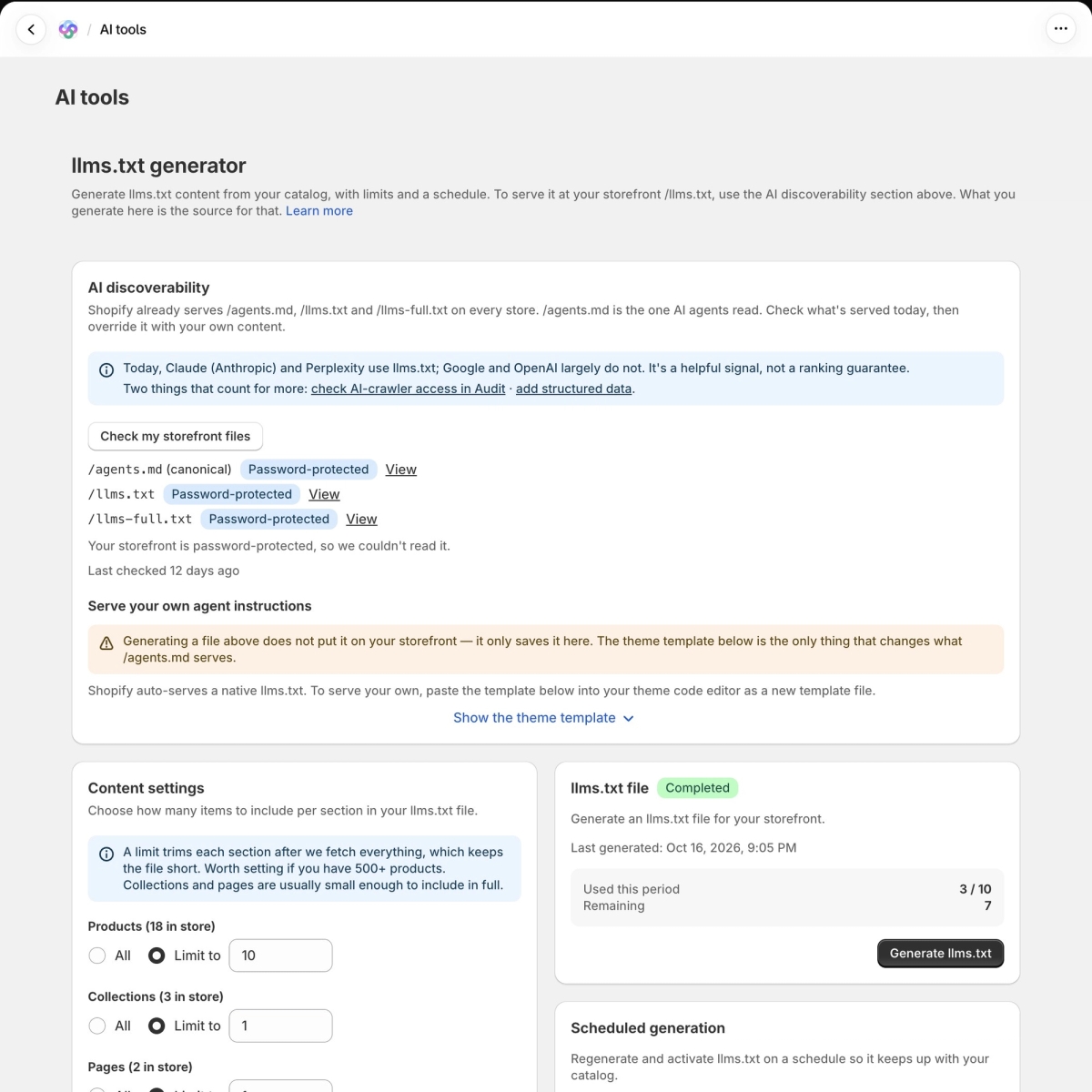
Click AI tools in the Seokai menu. The page has two parts: AI discoverability at the top and the llms.txt generator below it.
Step 2: Check what your storefront serves
Click Check my storefront files. Each file gets a badge, such as Shopify native, Custom, Not found or Password-protected, and a View link to open it. If your store has a password, Seokai can't read the files until you remove it.
Step 3: Generate your file
Under Content settings, choose how many items to include for Products, Collections, Pages and Articles: All, or Limit to a number. A limit keeps the file short, which is worth setting if you have more than 500 products.
Then click Generate llms.txt on the llms.txt file card. The card shows the status, when the file was last generated, and how many generations you have used and have left this period.
Step 4: Serve it on your storefront
Under Serve your own agent instructions, click Show the theme template and copy the content. In Shopify admin, go to Online Store, then Themes, then Edit code. Create a new template file named templates/agents.md.liquid and paste the content. A template at that path changes all three files: /agents.md, /llms.txt and /llms-full.txt.
Scheduled generation
On Scale and higher plans, Scheduled generation regenerates and activates your llms.txt so it keeps up with your catalog. Set Generation frequency to Weekly or Monthly and click Save schedule. The card shows when the next generation is due.
Managing Files
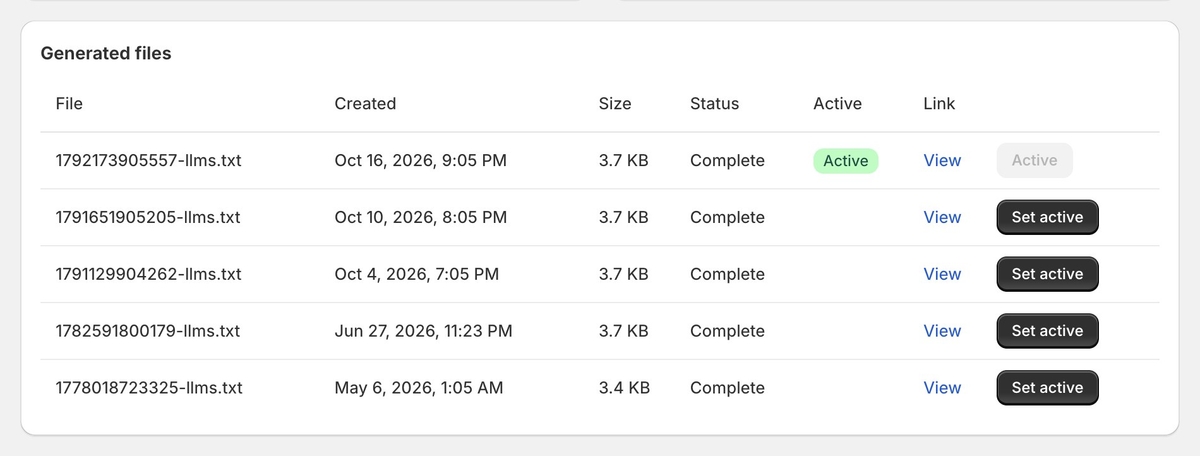
Generated files lists every file with its creation date, size and status. Click View to open a file, or Set active to make it your current one. Only one file is active at a time, and the active file is the source for the theme template.
Limits
Generating llms.txt doesn't use credits. Instead, each plan includes a number of generations per month: none on Explorer, 4 on Growth, 10 on Scale and 30 on Enterprise.