

What the SEO lists do
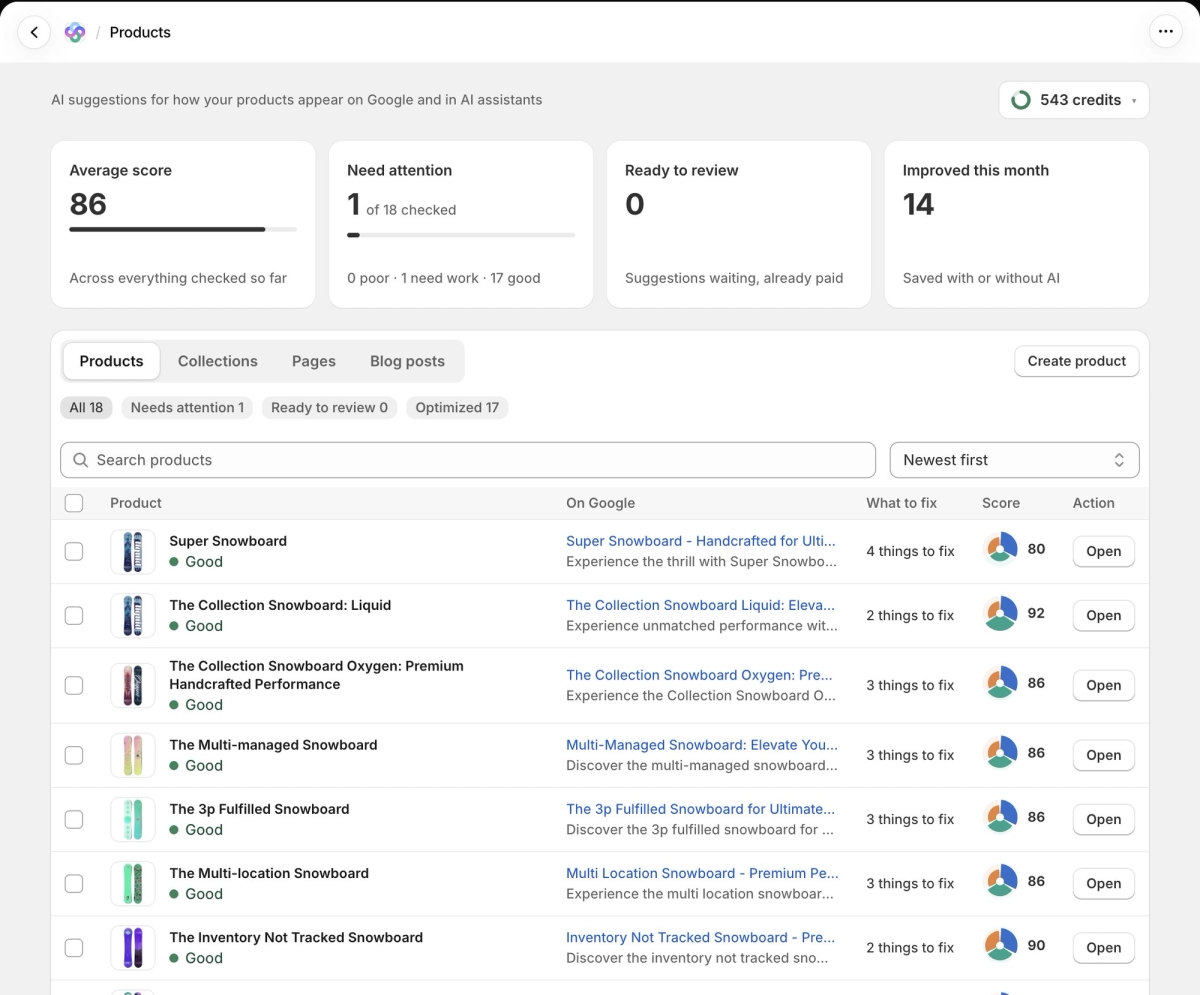
Open SEO in the Seokai menu to see one list per content type: Products, Collections, Pages and Blog posts. Four cards at the top sum up the type you are viewing: Average score, Need attention, Ready to review (suggestions that are written and paid for, waiting for you) and Improved this month.
Each row shows:
- The item's title and its status: Poor, Needs work or Good
- On Google: the page title and meta description as they appear in search results
- What to fix: how many score checks the item fails
- Score: the SEO score out of 100
- Open, which takes you to the item's editor
From the list you can select many items and have AI write suggestions for all of them in one run. Nothing changes on your store until you review and save each one.
Step 1: Find the items you want
Pick a tab, then narrow the list with the filters under it: All, Needs attention (items scoring under 80), Ready to review and Optimized. Search by title, and use the sort menu to switch between Newest first, Lowest score first and Highest score first. Long lists are split into pages.
The Create product button (or Create collection, Create page, Create blog post) opens the matching form in Shopify admin.
Step 2: Select items
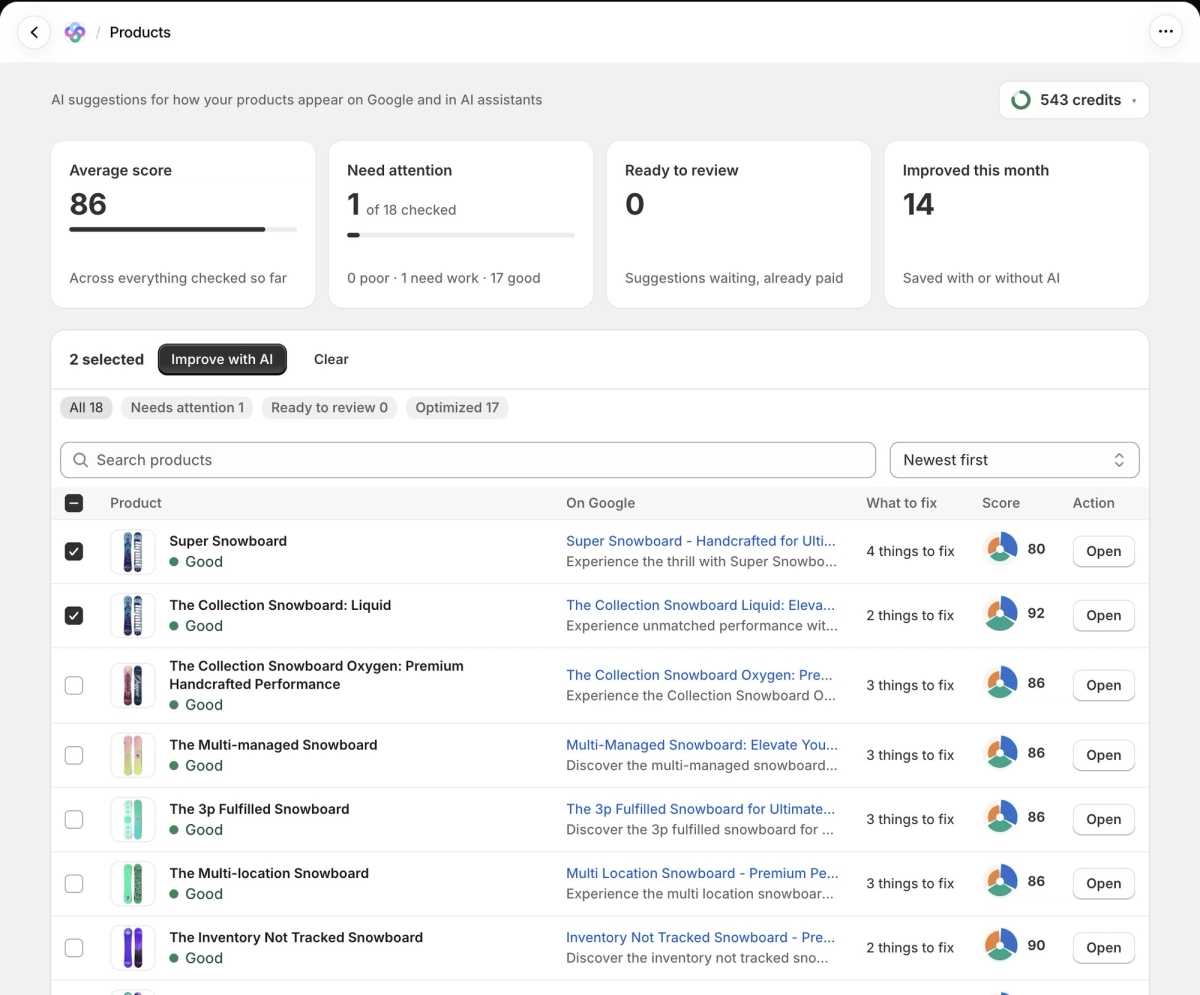
Tick the checkbox on each row you want to include. The checkbox in the table header selects everything on the current page. A bar appears at the top of the list with the number selected, Improve with AI and Clear.
One run can include up to 250 items. To work through a whole catalog, use the Bulk update page instead.
Step 3: Choose what AI writes
Click Improve with AI. A dialog asks what to write for the selected items:
- Search appearance: page title, meta description and focus keyword
- Title and description: for products and collections, AI improves the description and keeps your name unless it is empty. For pages and blog posts, it rewrites both the title and the description.
- Alt text: for images that have none (pages have no images, so this option doesn't apply to them)
- FAQ: 3 to 5 questions and answers per item
The dialog shows the credit cost of each option, the total, and your balance afterwards. Click Write suggestions to start.
Seokai writes the suggestions in the background. You can leave the page while it works, or click Stop to end the run early. Only one run can be in progress at a time.
Step 4: Review each suggestion
When the run finishes, a banner tells you the suggestions are ready. Click Start review, or click Later and come back any time: items with suggestions waiting show a Review button and appear under the Ready to review filter.
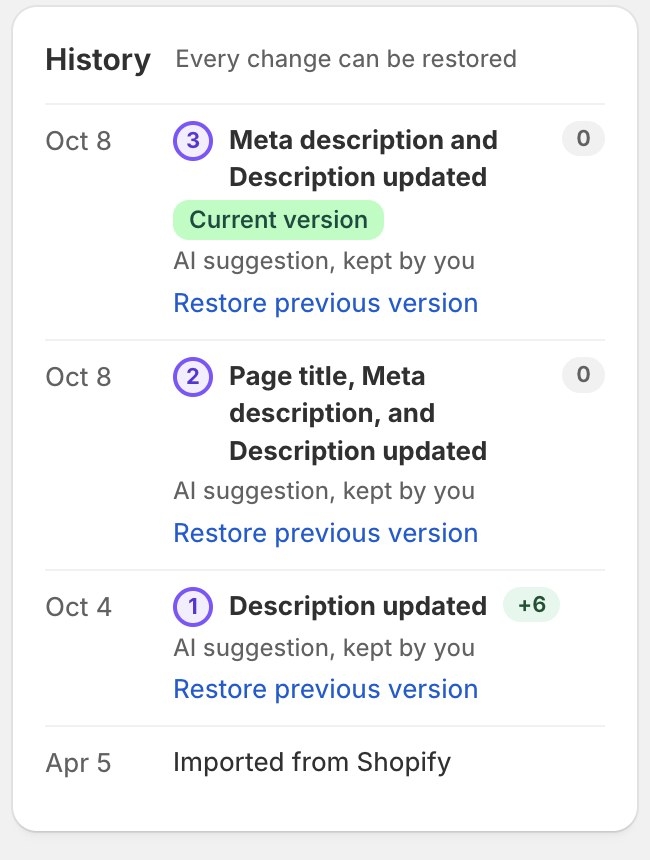
The review screen shows one item at a time ("Reviewing 1 of 12") with the same sections as the editor. Text written by AI is outlined in blue and labelled AI generated, and the score card shows what the score would be after saving. Edit anything you like, then choose:
- Save and next: saves this item's changes to Shopify and moves to the next one
- Discard: skips this item without saving and moves on
Credits are charged when the suggestions are written, so suggestions waiting for review are already paid for.
Step 5: Check or undo a saved change
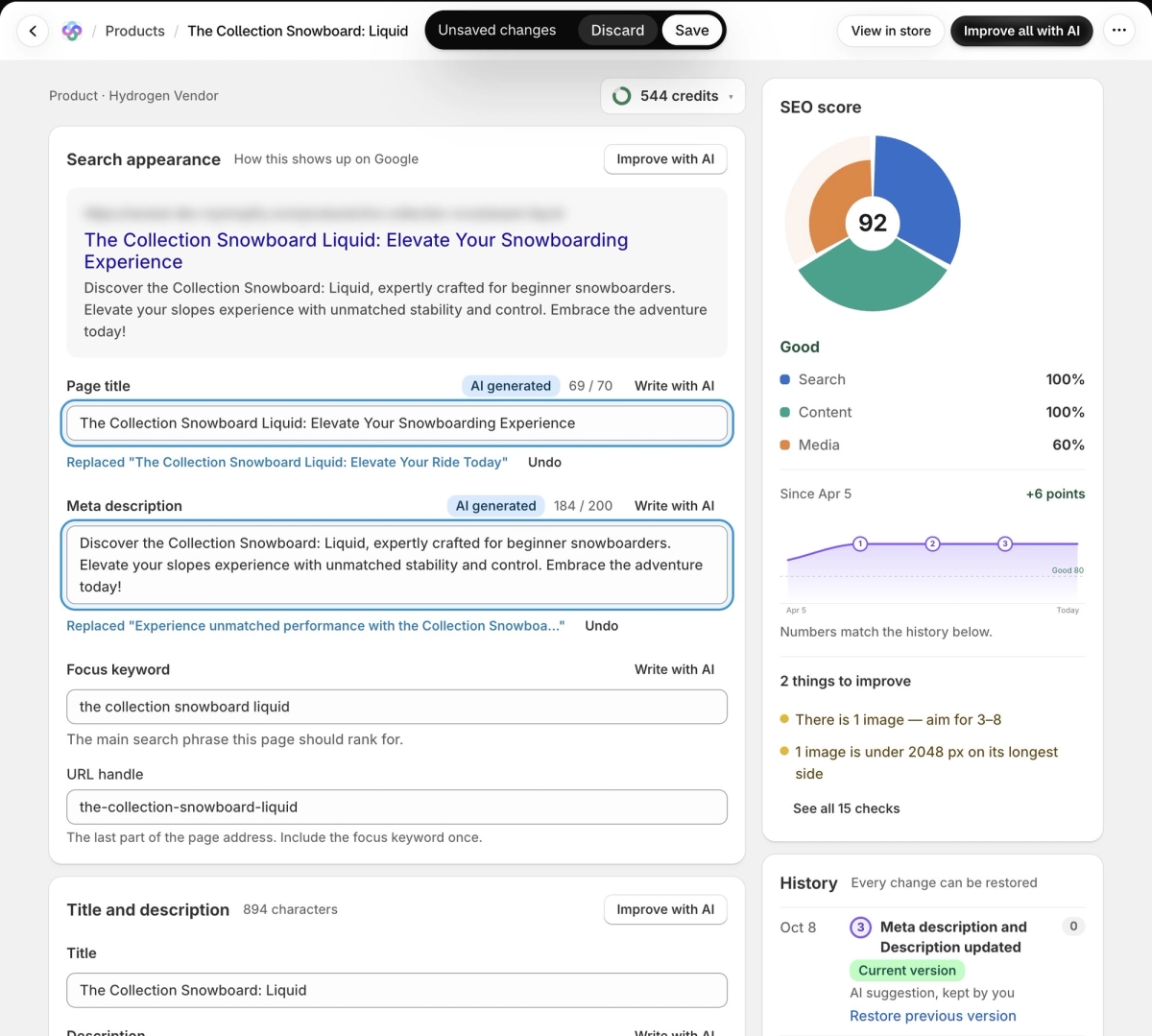
Every save is recorded in the item's History, in the side column of the editor. The newest entry is marked Current version, and each entry says where the change came from, for example "AI suggestion, kept by you". To go back, click Restore previous version on an entry and confirm. This puts back the values from before that change.
Editing one item directly
Click Open on any row to work in the editor instead. AI text you ask for there stays as an unsaved draft, and an Unsaved changes bar appears at the top of the page with Discard and Save. Nothing is written to Shopify until you click Save. If you try to leave the page with unsaved changes, Shopify asks you to confirm first.
Limits
- A run needs enough credits for the whole selection. If you are short, the dialog says so: choose fewer items or options, or get more credits.
- Products count toward your plan's monthly limit of optimized products (15 on Explorer, 500 on Growth, 2,500 on Scale, 10,000 on Enterprise).
- Improving items from the SEO lists works on every plan, including Explorer.