

What this page is for
Every product, collection and blog post has its own image page. It lists all of the item's images in one place, lets you edit their alt text, and shows a preview of what optimizing an image will do before you spend any credits.
How to get started
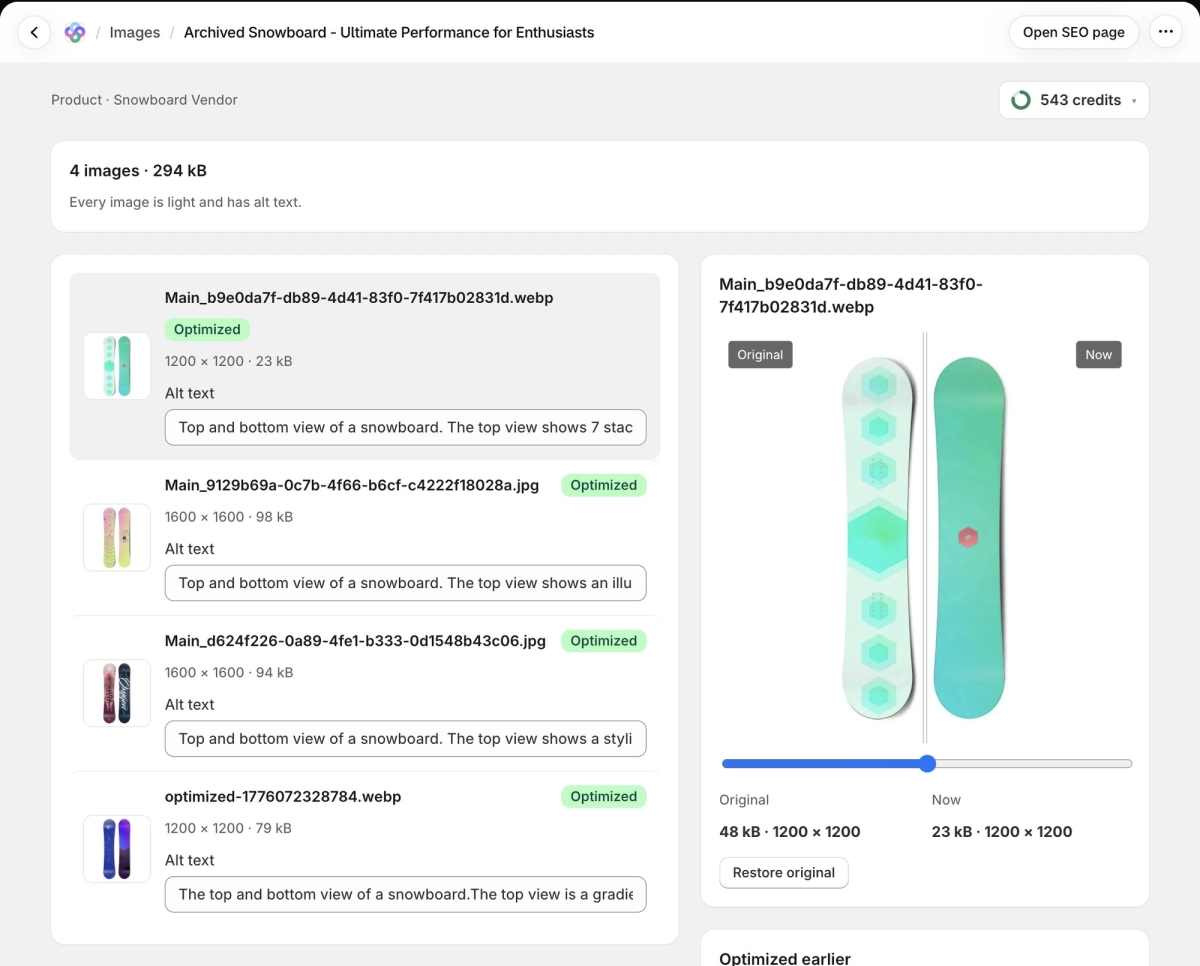
Open Images from the Seokai menu and click Open on a row. The top of the page sums up the item, for example "4 images · 294 kB", and tells you how many images could be lighter or have no alt text.
On the left, each image is listed with its file name, status, dimensions, size and an Alt text field. Click an image's thumbnail to show it in the preview panel on the right. Open SEO page in the header takes you to the item's editor.
Optimizing one image
For an image that hasn't been optimized yet, the preview panel compares Now with After. The After version comes from a free trial run with the settings you choose, and nothing is uploaded to your store. Pick a Compression level (Smaller files, Balanced or Best quality) and tick Shrink to 2048 px on the longest side if you want it resized. The preview and the expected size update as you change them.
When you are happy, click Optimize this image. If the image is already as light as it can be with those settings, Seokai tells you and the button stays off.
To optimize every image on the page that can be lighter, use the Optimize button in the header.
Editing alt text
Type in any Alt text field to change it. Write alt text asks AI to describe the images that need it. New AI text is marked AI generated, with Undo to bring back the previous text. Click Save alt text to save your changes.
Restoring the original
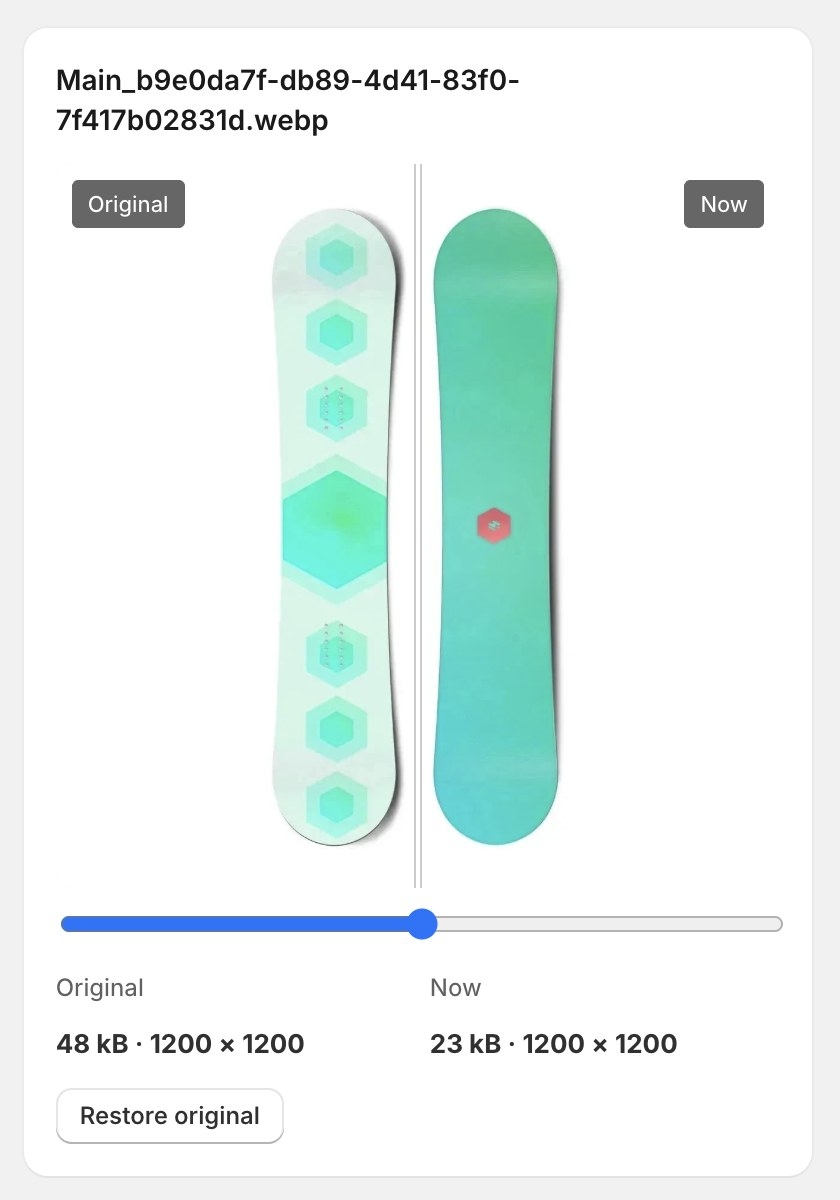
For an image that was optimized, the panel compares the Original with Now and shows the size and dimensions of both. Click Restore original and confirm. The original goes back in place of the optimized file, and the alt text stays as it is now. The Optimized earlier card lists past changes with their dates and sizes.
One image or many
This page is for working on one item. To optimize or write alt text for images across many items, select them on the main Images list. Both use the same compression and the same prices.
Plan and credits
The before-and-after preview is free. Optimizing costs 0.75 credits per image, charged only when the image gets at least 10% lighter. Alt text costs 0.25 credits per image. Image optimization works on every plan.