

Bulk Image Optimization
The Images page makes your product, collection and blog post images lighter so pages load faster, and writes alt text for images that have none. You work on many images at once from one Seokai screen.
Compression runs on Seokai's servers and does not use AI. Each image keeps its original format, and the original file is kept so you can restore it. Only alt text is written by AI.
Getting started
Open Images from the Seokai menu. The Bulk image optimizer card on the Home page opens the same screen. Four cards at the top show your total Image weight, how much you Could save, what you have Saved so far, and how many images have Missing alt text.
Browsing your images
Use the tabs for Products, Collections and Blog posts. Filter by Needs work, Heavy, No alt text, Optimized or All, and search by title.
Each row shows the image with its item title and alt text, its Size, its Dimensions and its Status, such as Optimized, Looks good, Heavy file or No alt text. For optimized images, the size line also shows the old size and how much smaller the file is now. Click Open to see all images of that item.
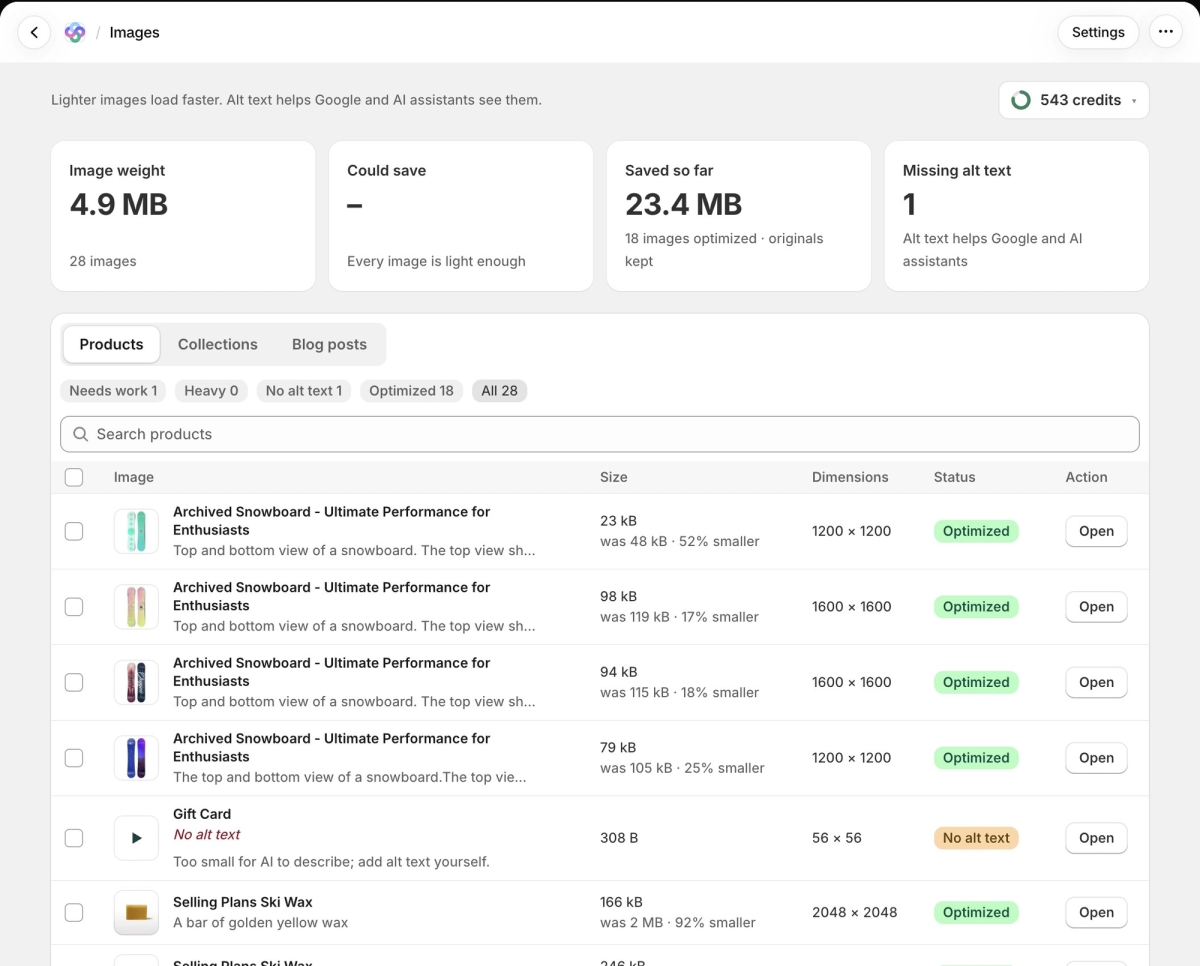
Choosing your settings
Click Settings at the top of the page. Under Compression, pick Smaller files, Balanced or Best quality. Tick Shrink to 2048 px on the longest side if you also want large images resized. Every optimize run uses these settings.
Running a batch
Tick the images you want. A bar shows how many are selected and about how much you will save, with Write alt text, Optimize and Clear. Click Optimize (the button shows the number of images, for example "Optimize 2 images").
The batch runs in the background, with no limit on how many images you select. You can leave the page while it works, or click Stop. When it finishes, Seokai shows how much lighter the images are, the credits used, and any images that were skipped.
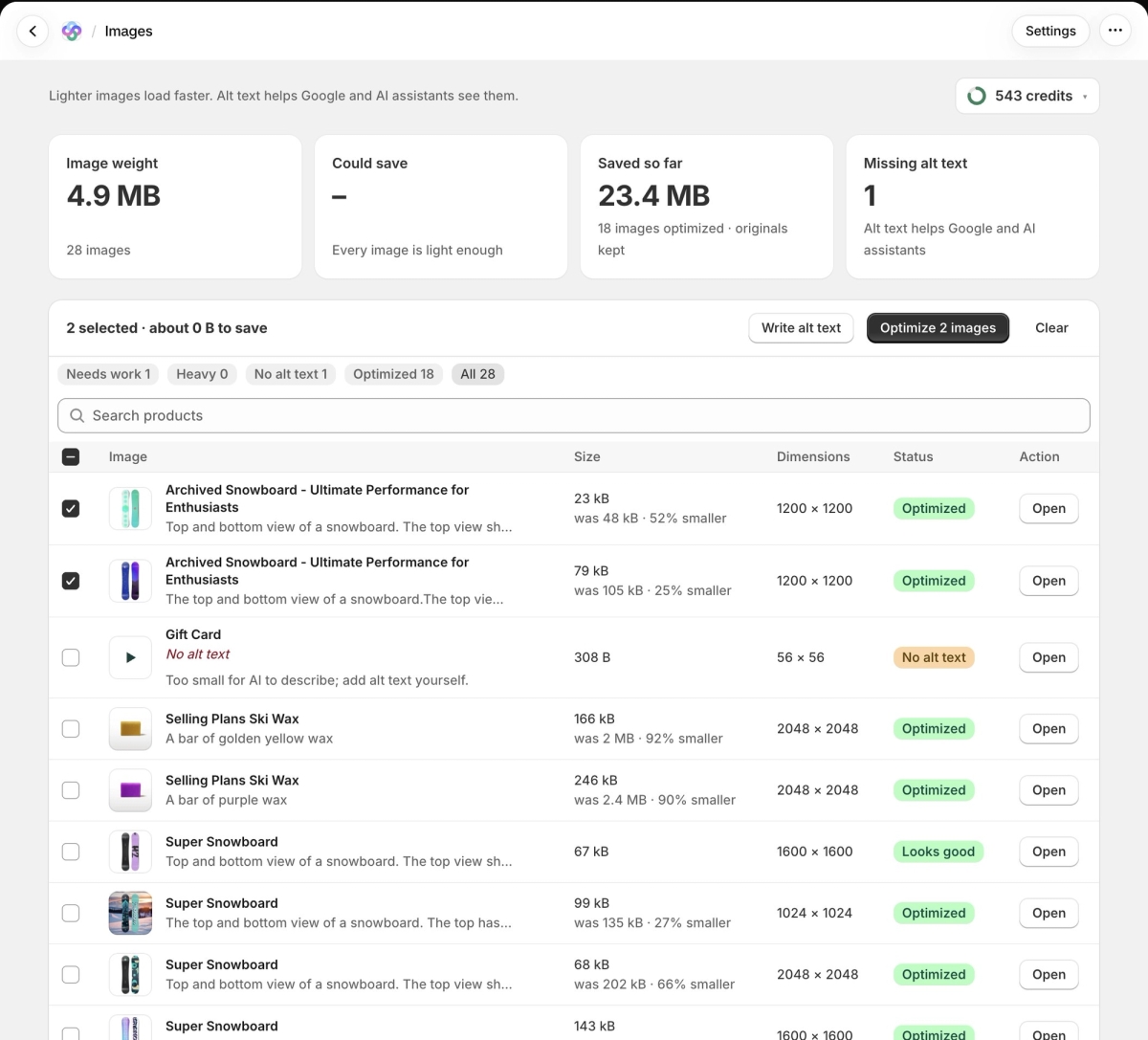
Writing alt text in bulk
Select images and click Write alt text. AI looks at each photo and writes a description. The results wait for you to check: click Save alt text to keep them or Discard to drop them. Images that are too small for AI to describe are skipped and marked so you can add alt text yourself.
Restoring an image
Open the item, then click the optimized image. The preview shows the Original next to Now, with a slider to compare them and the size and dimensions of each. Click Restore original and confirm. The original goes back in place of the optimized file, and the alt text stays as it is now.
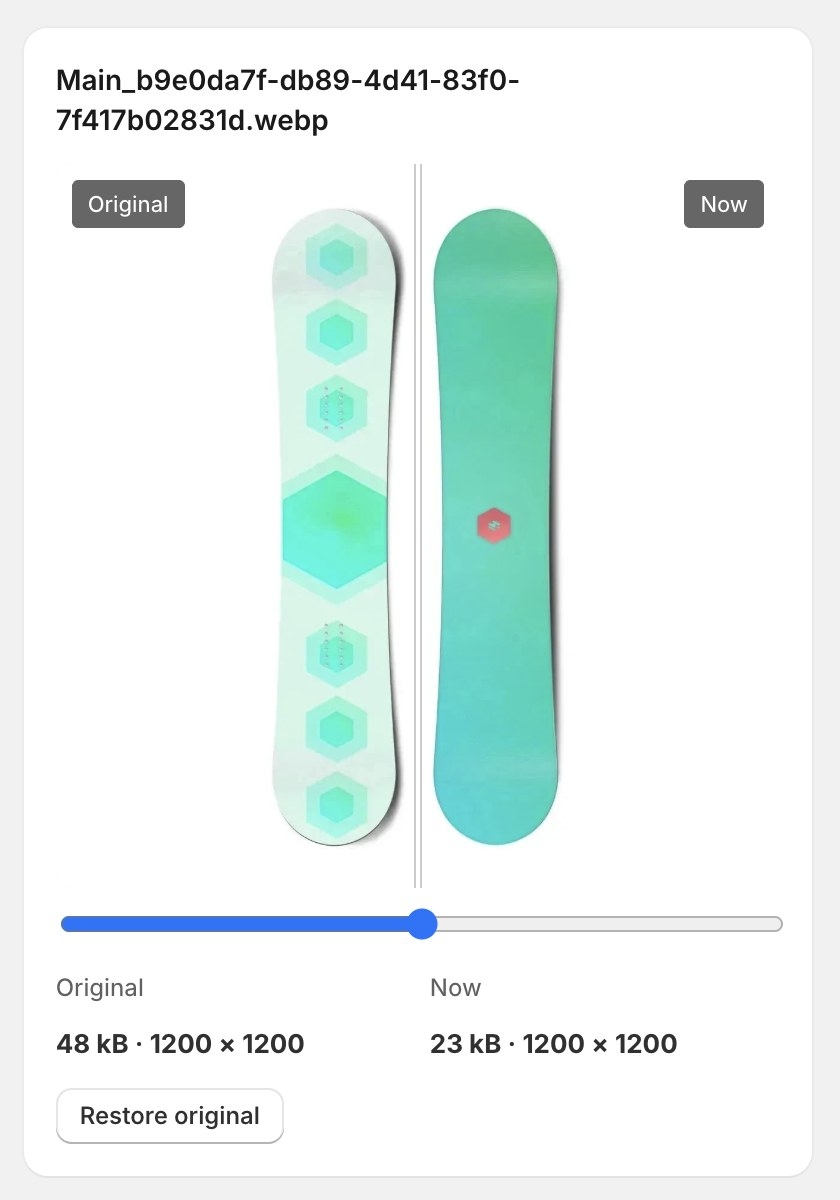
Credits
Optimizing costs 0.75 credits per image, and you are only charged when an image gets at least 10% lighter. Images that are already as light as they can be are skipped for free. Alt text costs 0.25 credits per image. If your credits don't cover the whole batch, Seokai keeps going until they run out. Your balance is on the credits button at the top of the page.